
🌟 This feature is included in the STARTER Plan and up
In this article, you'll learn how to leverage the Lucen Track Outlook Add-in to categorize your events right when you create them easily. This feature completes the suggestion-based Outlook Calendar integration, bringing you a seamless, effortless time tracking experience: fewer clicks, cleaner data, and time entries that actually reflect your calendar.
Learn about how Outlook Calendar integration works here.
This article will teach you to
-
Install and use the Track Outlook add-in in Outlook Calendar
- Assign Timeneye projects and phases to the event from the Outlook event panel
- Add tags and notes to the event before the meeting starts
Step One: Install the Outlook Add-in
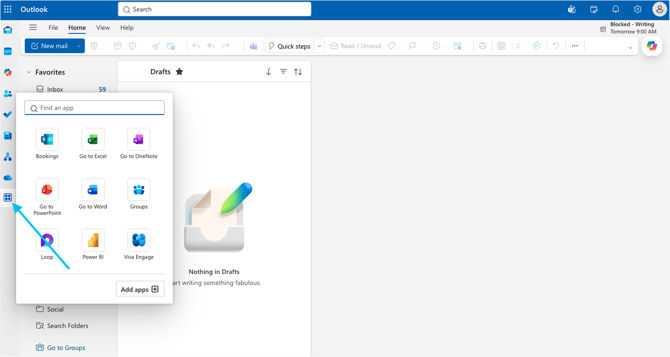
From the Outlook main view, go to the left sidebar and click “More apps”:
Click "Add apps", look for the Track (formerly Timeneye) Outlook Add-in, and click Add.
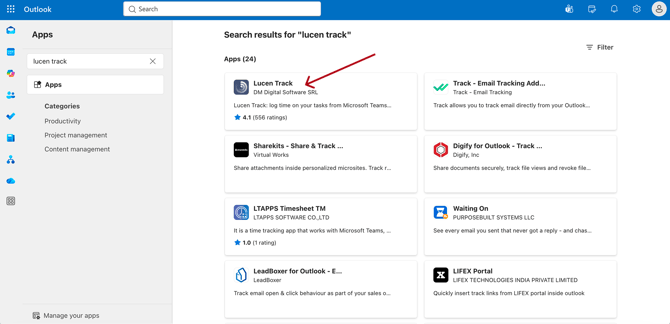
That's it! You have successfully added the Track add-in to Outlook.
Step Two: Create your Outlook Calendar Events
Now that you have installed the Outlook add-in, go to Outlook Calendar. Click “New event” to create an event for your meetings, private appointments, calls, and so on.
In the top bar, you’ll see the “Apps” option. Click and select Track Time Tracking.
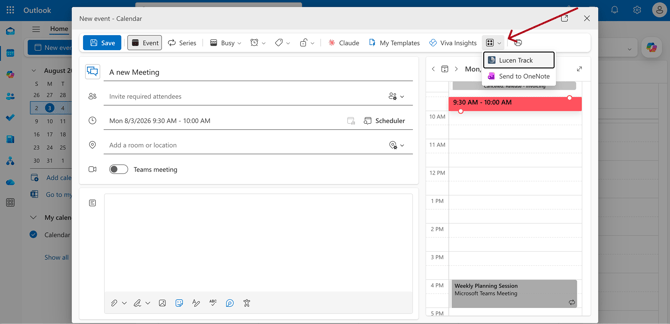
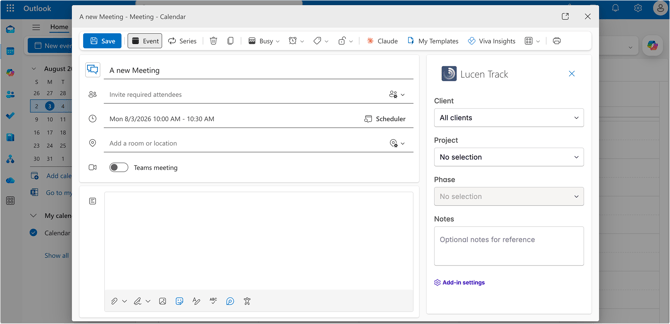
This will open a Track panel on the right. If you’re not already logged it, you’ll be asked to put in your credentials; otherwise, you’ll see the panel to tag your event.
From the panel, you can now go ahead and select a project, phase, or even add tags and notes.
Step 3: Syncing your Outlook event details to Track Entries
This step is the easiest, because you don’t actually have to do anything!
Once your event is saved, with all the details you set up in the panel, the Outlook add-in will sync all this data to your Track entries.
So when you go back to the Track dashboard, you’ll find your event as a suggestion, with all the information you already assigned from the panel. Just like the other suggestions, you can accept, edit, or discard them.
The add-in also works on past events, so you can quickly update them and sync any new details back to your Track time entries.
All you have to do is locate the event on the calendar, edit the data from the panel, and then save.