🌟 This feature is available on the Enterprise plan
Custom fields let Owners and Admins create new categories for clients, projects, time entries, to-dos, and users. Your team fills them in as they track time, giving you detailed, structured data you can segment and report on across every project.
This feature builds on Tags, which already let you categorize time for cross-project organization and accurate reporting. Custom fields take that further by letting you define the exact categories your business needs.
On the free, Starter, or Premium plans? Upgrade today to unlock custom fields
If you're an Owner or Admin of the workspace:
- Go to Settings> Features.
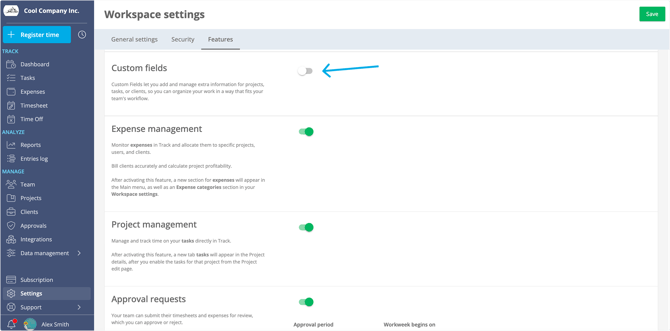
- Find the Custom fields option and toggle it on.
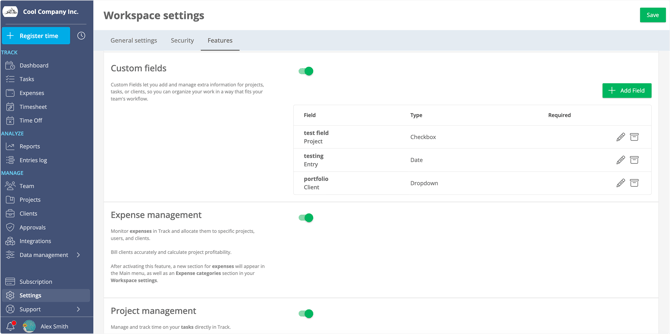
- Once it's on, a new Add field option appears. Click the green button and start creating.
- Now create your fields. Custom fields can be applied to the following entities in Track:
- Client
- Project
- Entry
- Task
- User
Available field types
- Text: a single line of free text
- Number: numeric values only
- Dropdown: pick one option from a predefined list
- Multi-select: pick one or more options from a predefined list
- Checkbox: a check option
- Long text: a multi-line text area for longer notes
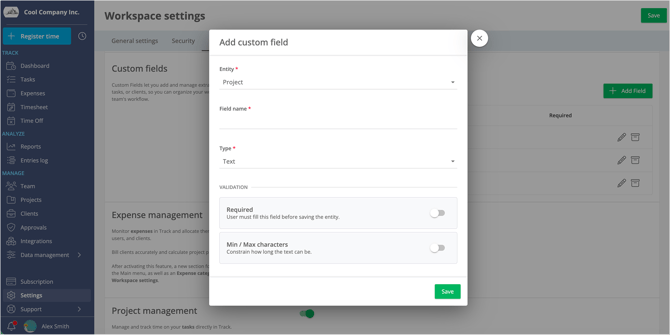
Make a field required (and set length rules)
You can mark one custom field as required. When a field is required, anyone who creates a project, client, task, or entry without filling it in will see an error message, so the data you depend on never gets skipped.
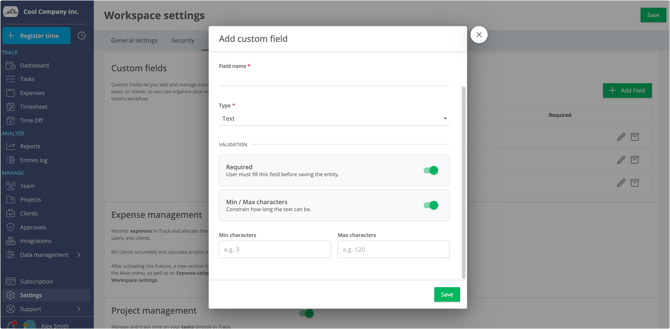
For Text fields, you can also set a maximum character length to keep entries consistent.
You can edit your custom fields at any time, and archive any you no longer need.
Where to find your custom fields
Custom fields appear right on the entity you attached them to in Track.
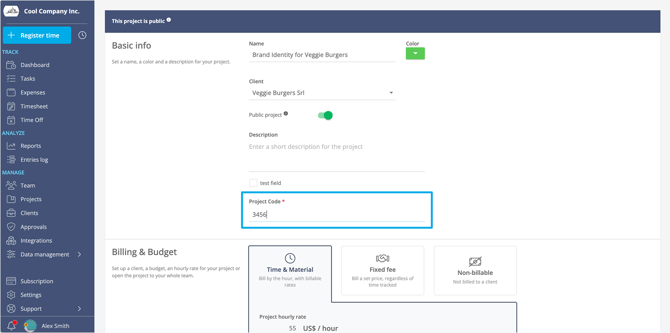
For example, here's a custom field when creating a Project. In this example, users are required to enter a “Project code” whenever they create a project:
.png?width=670&height=336&name=custom%20field%20in%20project%20(1).png)
And here's the same field when editing a project:
In this next example, a multi-select field captures the “ICP Tier” of a client, alongside a “Contract number”:
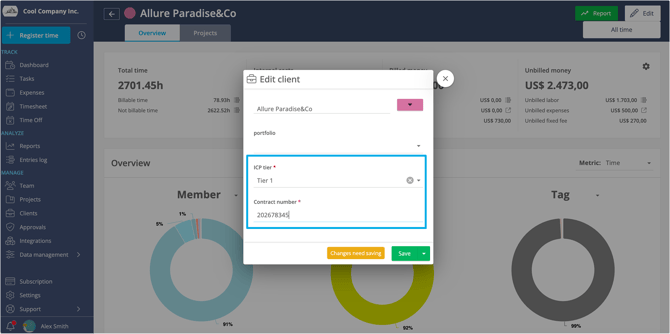
As you can see, every field type can be tailored to your business's needs.
Filtering reports by custom fields
Here comes the most interesting part of using custom fields.
In the Reports section, you can filter by your custom fields right alongside the standard project filters,and combine more than one field at once.
This lets you dig deep into the details of your time data, segment by the attributes that are specific to your business, and see time tracked across multiple projects, clients, tasks, and users in one view.
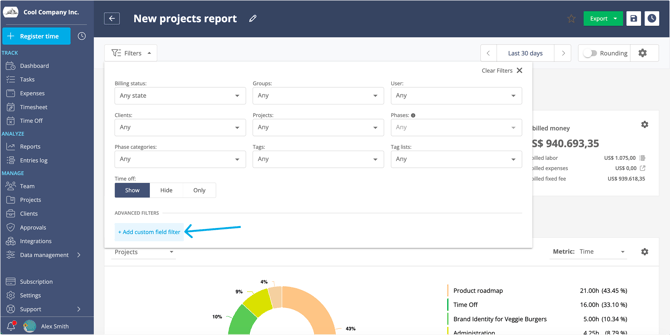
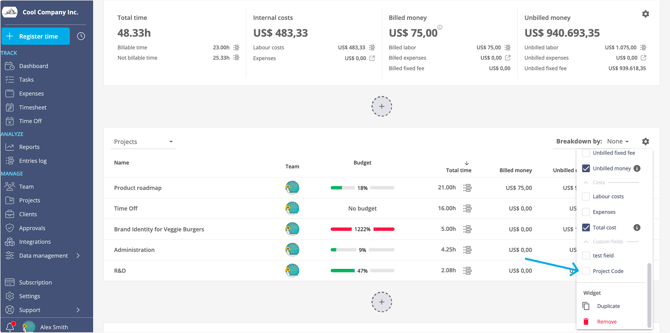
In the report's customization options, you can also add columns for your custom fields. That way, when you export a report, it includes every data point that matters to your business.