
In Lucen Track, you can easily send a timesheet for approval to show proof of work on projects and tasks. You can also add Time Off and absences, so the timesheet reflects not just work, but the full activity of each person in any given week.
🌟 This feature is available on Starter plans and above.
In this article, you'll learn how to:
- Enable the time off feature in your workspace
- Create time off categories
- Submit and approve time off requests
How to activate the Time Off feature in your workspace
If you're the workspace Owner, you can activate the feature from Settings. Go to Features, find Time Off, and switch the toggle on.
You'll then be prompted to set up your time off categories.
On the Free plan? Upgrade your plan to use this feature.
Not the Owner? Ask your workspace Owner to enable this feature.
.png?width=670&height=376&name=time%20off%20settings%20(1).png)
How to set up Time Off categories
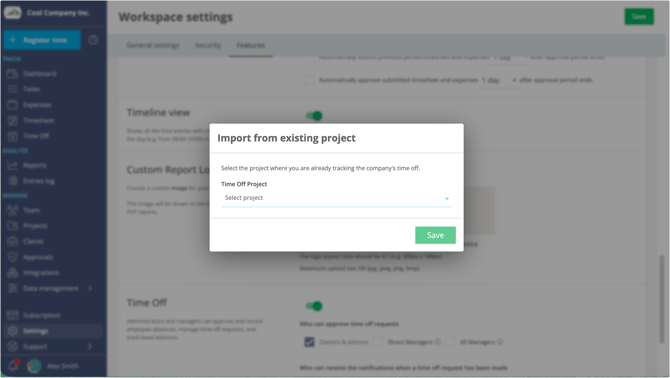
You can create your categories manually or import them from an existing project:
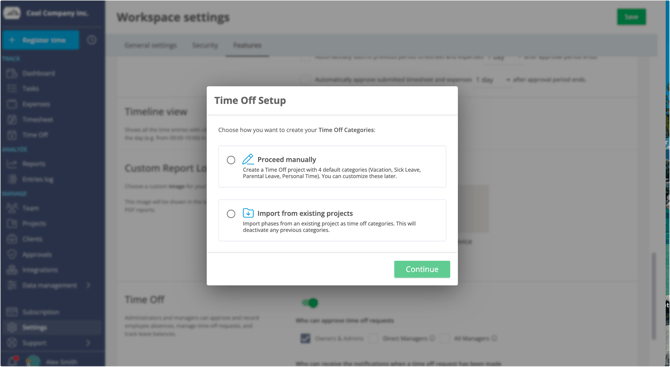
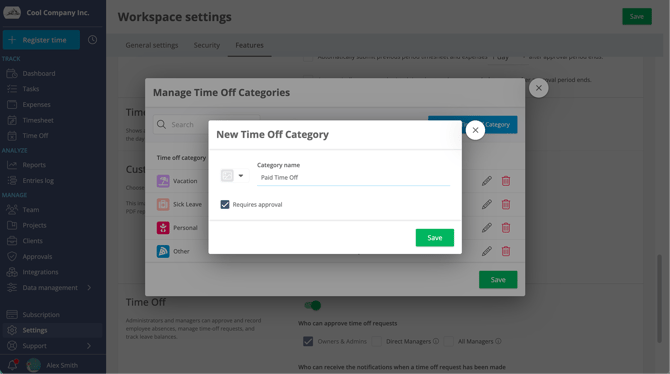
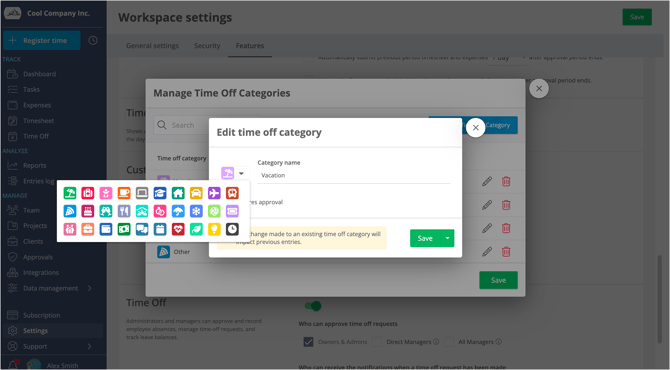
Set up manually: You'll see 4 default categories: Vacation, Sick Leave, Personal, and Other, each with an icon. You can edit the existing categories, add new ones, and choose the icons you prefer.
Import from a project: A dialog will appear where you can select the project to import from.
You can always edit your time off categories later if needed.
The setup will automatically create a public project called "Time Off" that users can add time to when submitting their requests.
Adding holidays in the Time Off setup
You can mark specific days as holidays so that users aren't required to log time entries on those days.
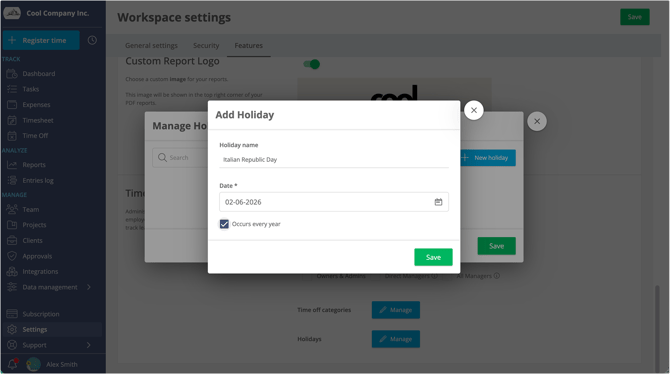
Go to Settings > Features > Time Off and click Manage Holidays. Then click Add Holiday, enter a name and date in the pop-up, and save.
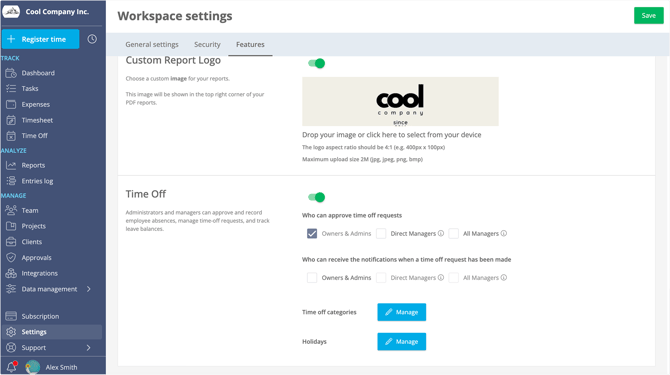
Then click Add Holiday, enter a name and date in the pop-up, and save.
Time Off permissions
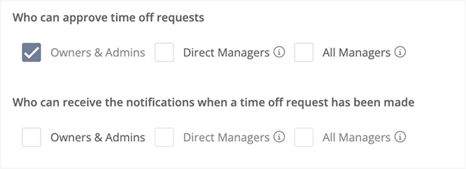
In the Time Off settings page, you can assign approval permissions and clearly see who is allowed to approve time off requests. Available options are:
- Owner/Admin (default)
- Direct manager
- All managers
You can also configure who receives notifications about new submissions.
How to approve time off requests
Users submit time off requests from the Time Off page by clicking New Request.
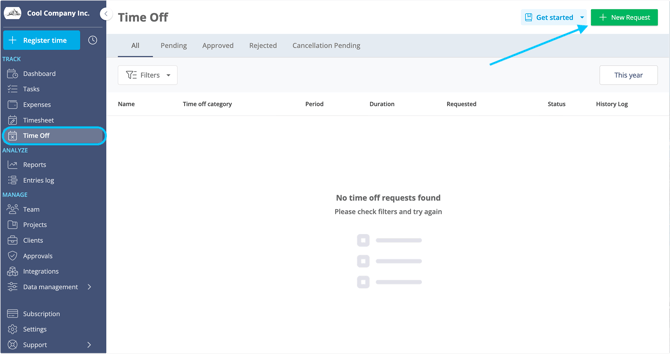
All pending requests appear under the Pending tab.
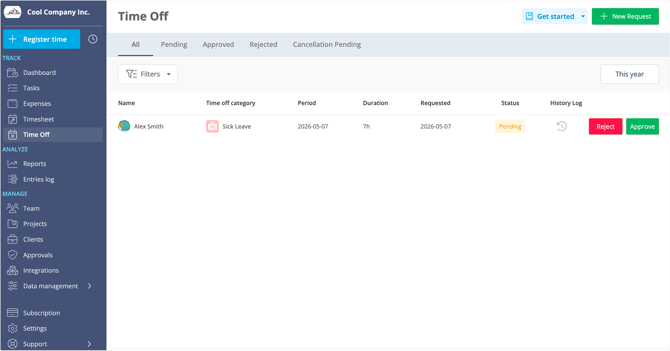
Click the green button to approve or the red button to reject a request. In both cases, you have the option to add a note to the employee.
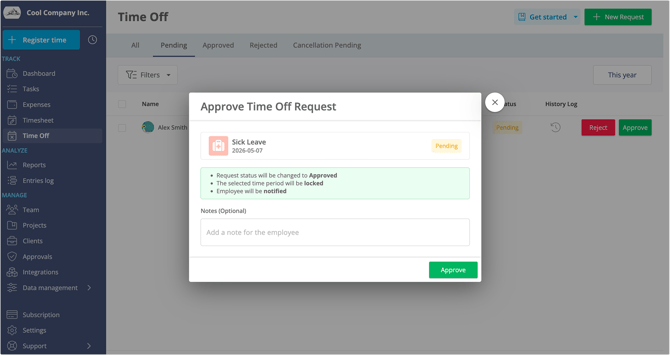
All approved requests can be found under the Approved tab.
Time Off requests from the Timesheets section
This section of the guide applies only if you have the Timesheets feature activated.
When a user submits a time off request and it's approved by a manager, it automatically appears in the timesheet as "Time off".
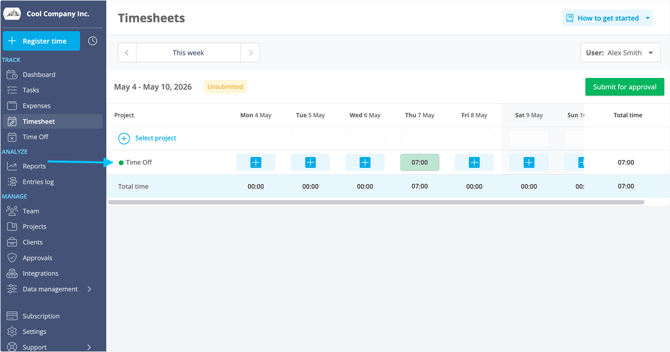
Users can also log time off directly from the Timesheets section by adding time to the "Time Off" project.
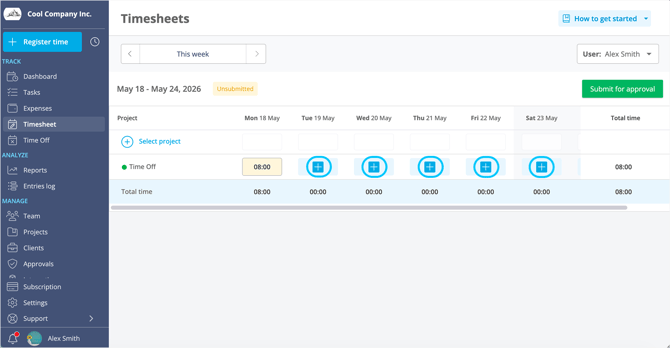
As a manager responsible for approving timesheets, you can approve time off entries alongside time and expenses, or approve only time and expenses.
.png?width=670&height=351&name=time%20off%20approve%20timesheet%20(1).png)